
Choose what fits your session
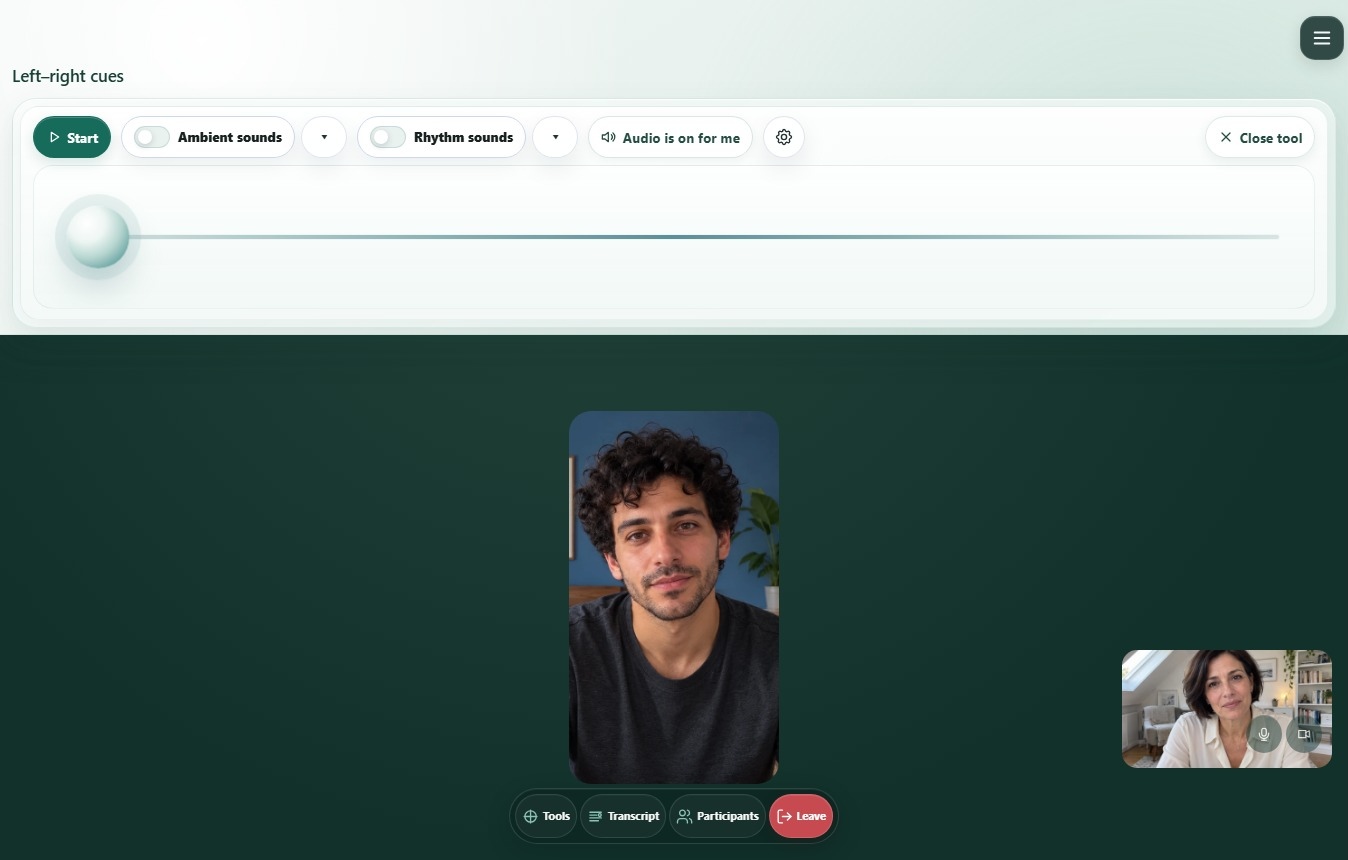
Left–right cues
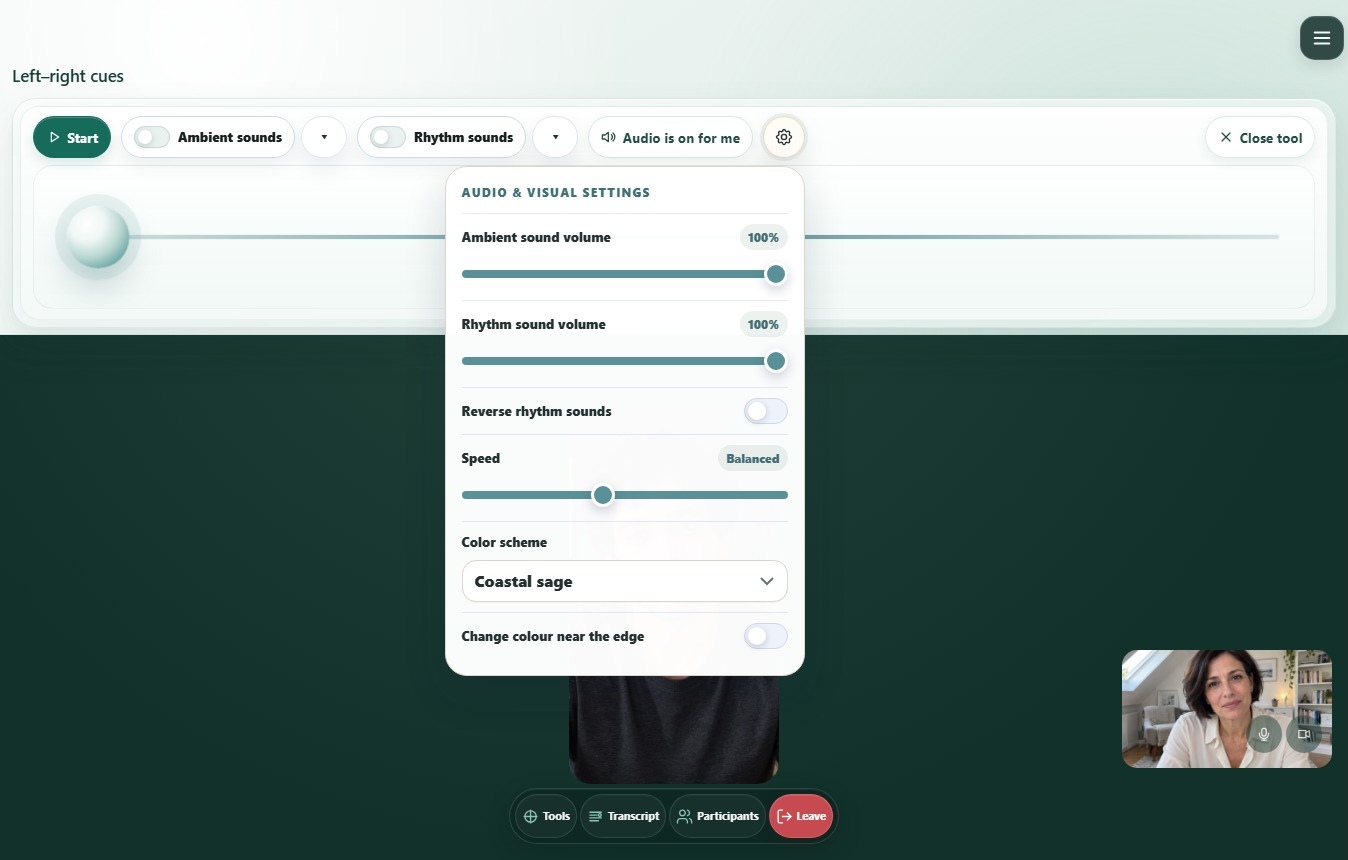
Show a moving dot with optional sound. The host controls playback and can adjust several settings, including the speed of the dot.
- Adjust speed and visual appearance
- Choose rhythmic sounds and soundscapes
- Start and pause within the same session
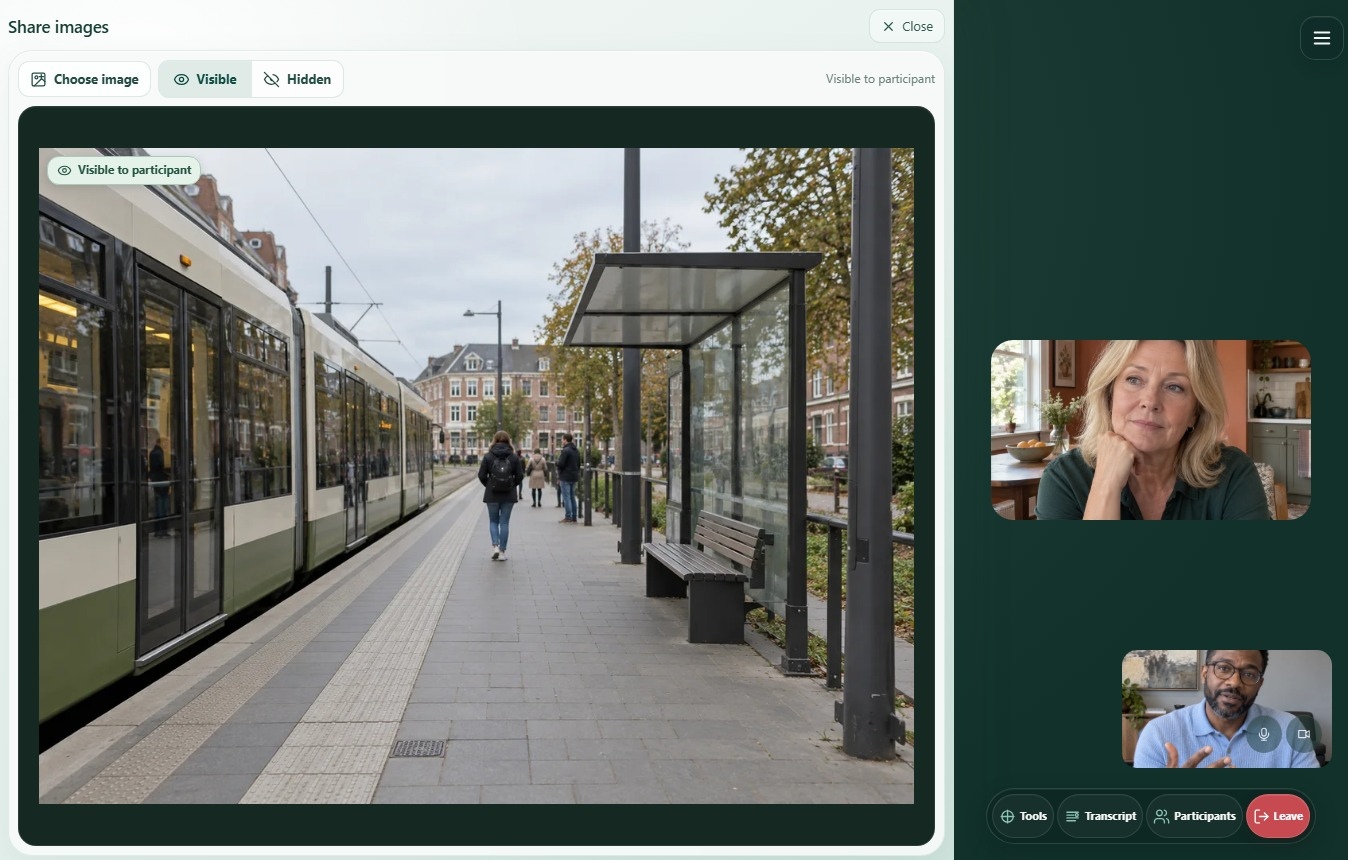
Share images
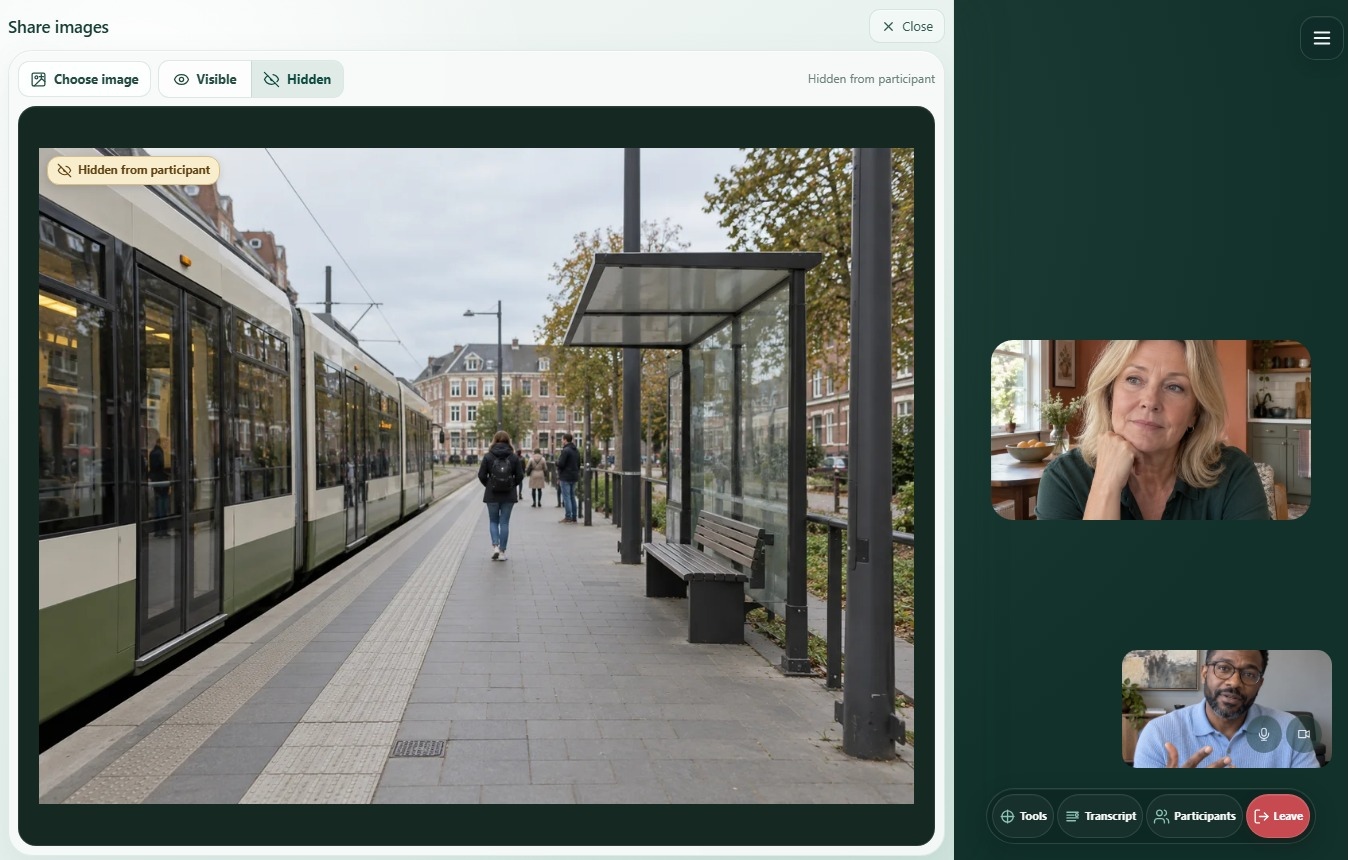
Show an image during a video call. The host decides when it is visible.
- Choose your own image
- Show or hide with one click
- Check what is visible to your client
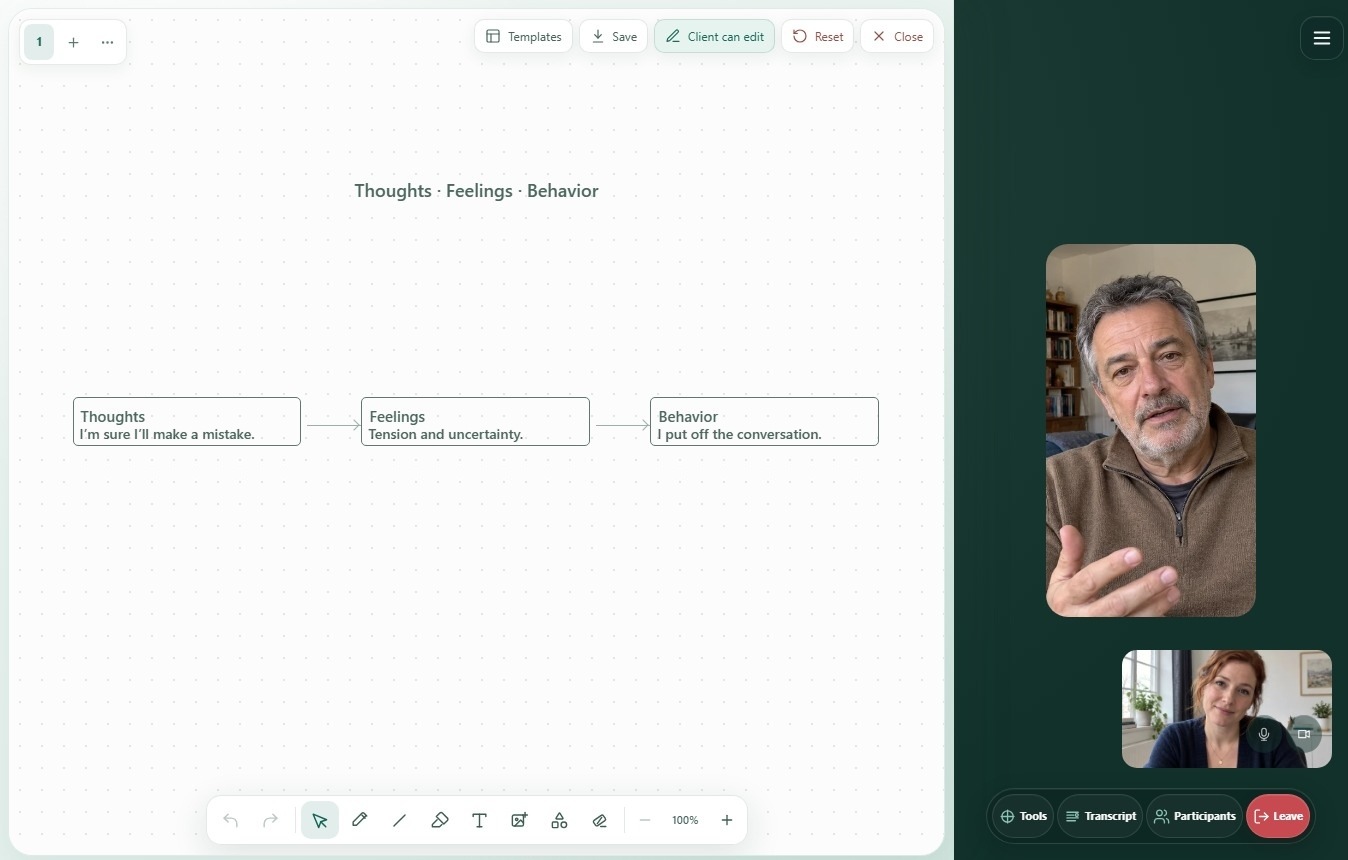
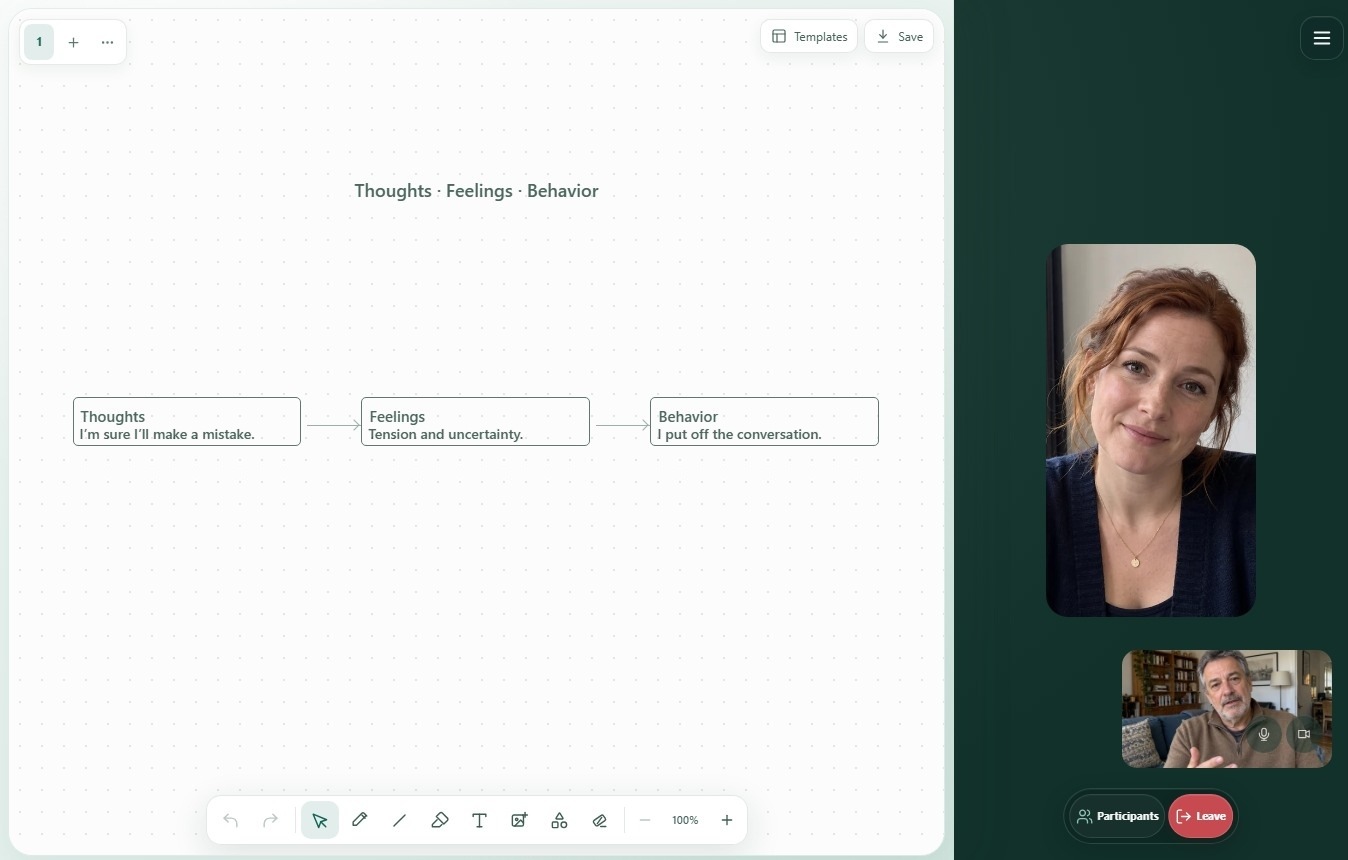
Drawing board
Draw and write together on the same board. Use templates or a blank canvas to fill in diagrams or make thoughts, feelings and ideas visible.
- Draw together when the therapist allows it
- Text, images and multiple pages
- Save a board or share it later
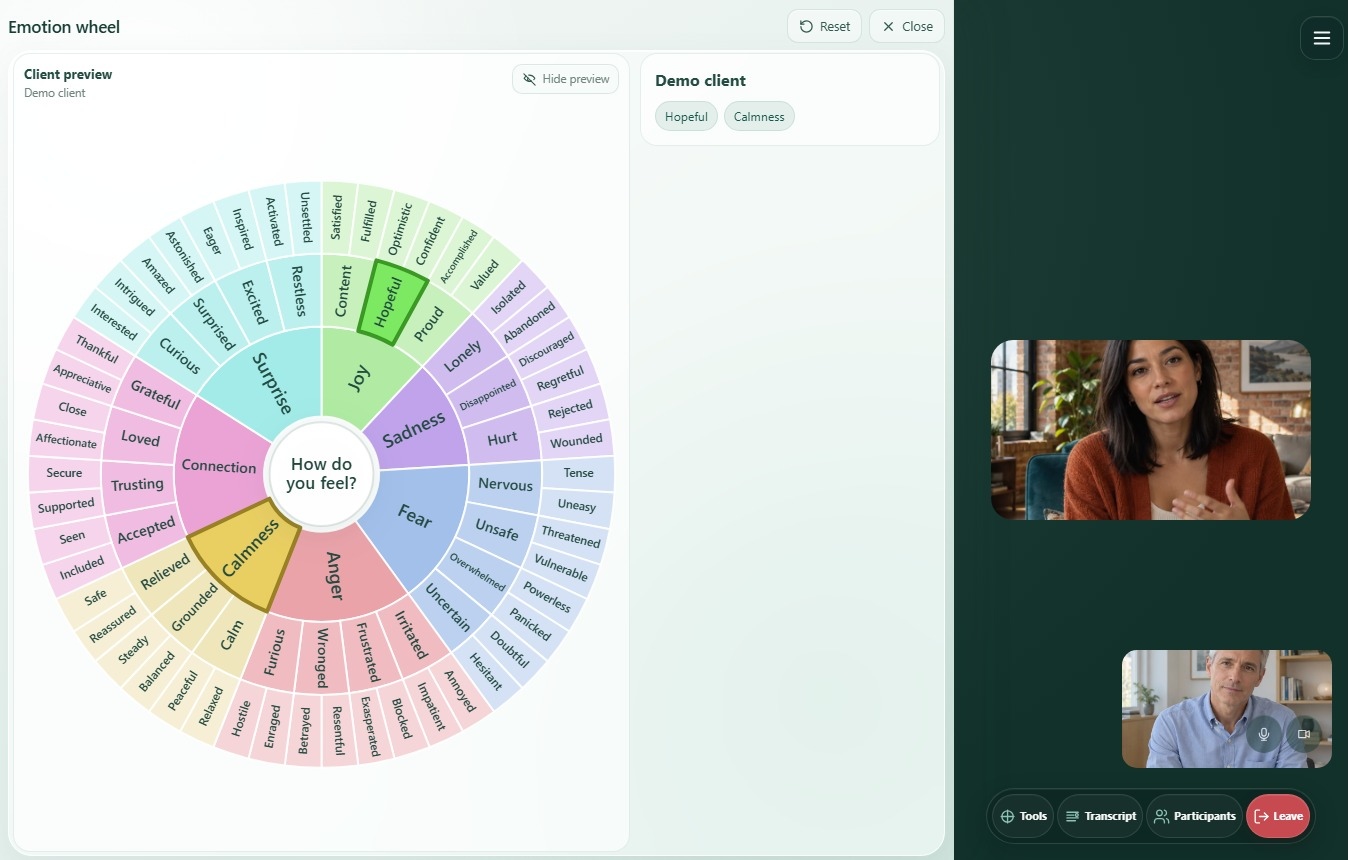
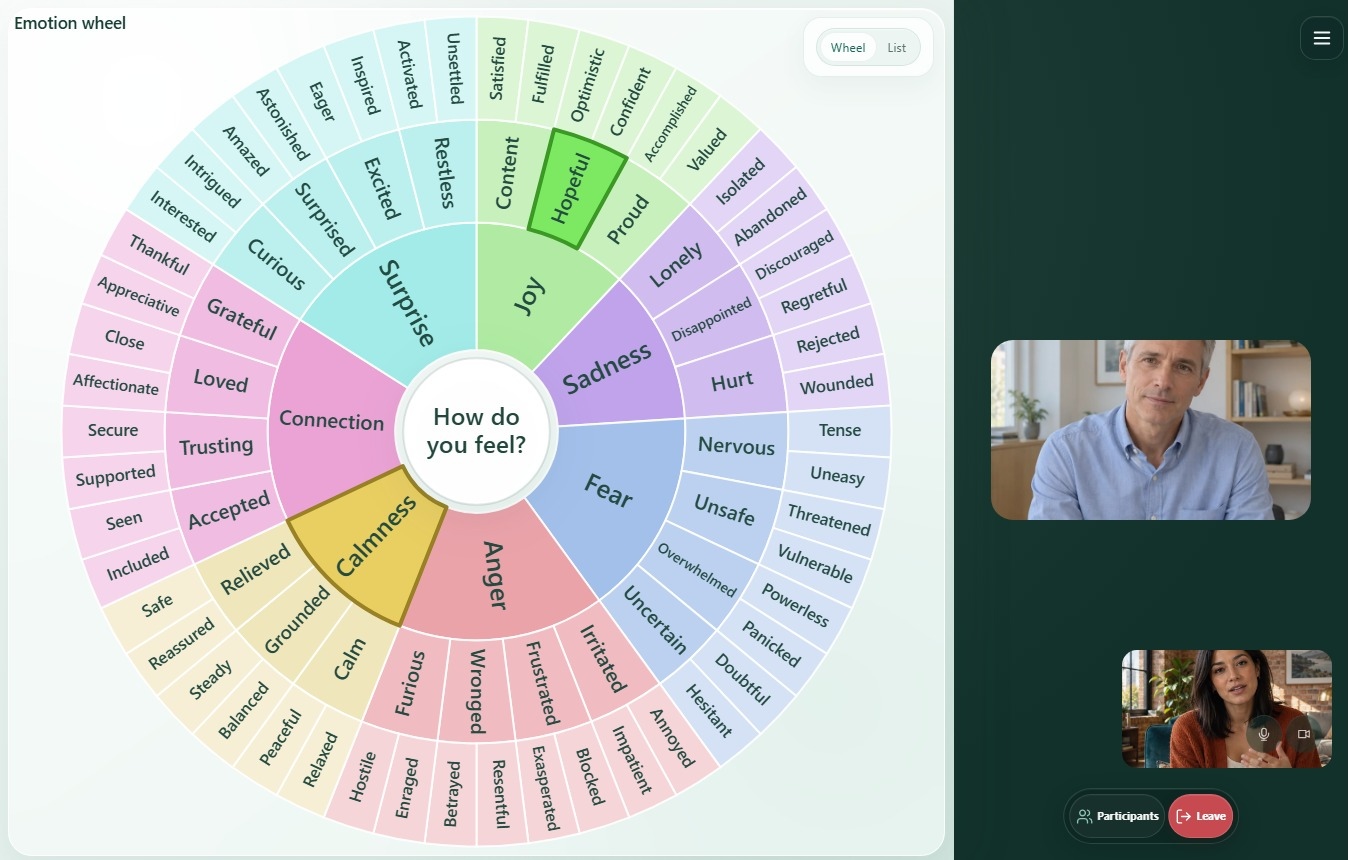
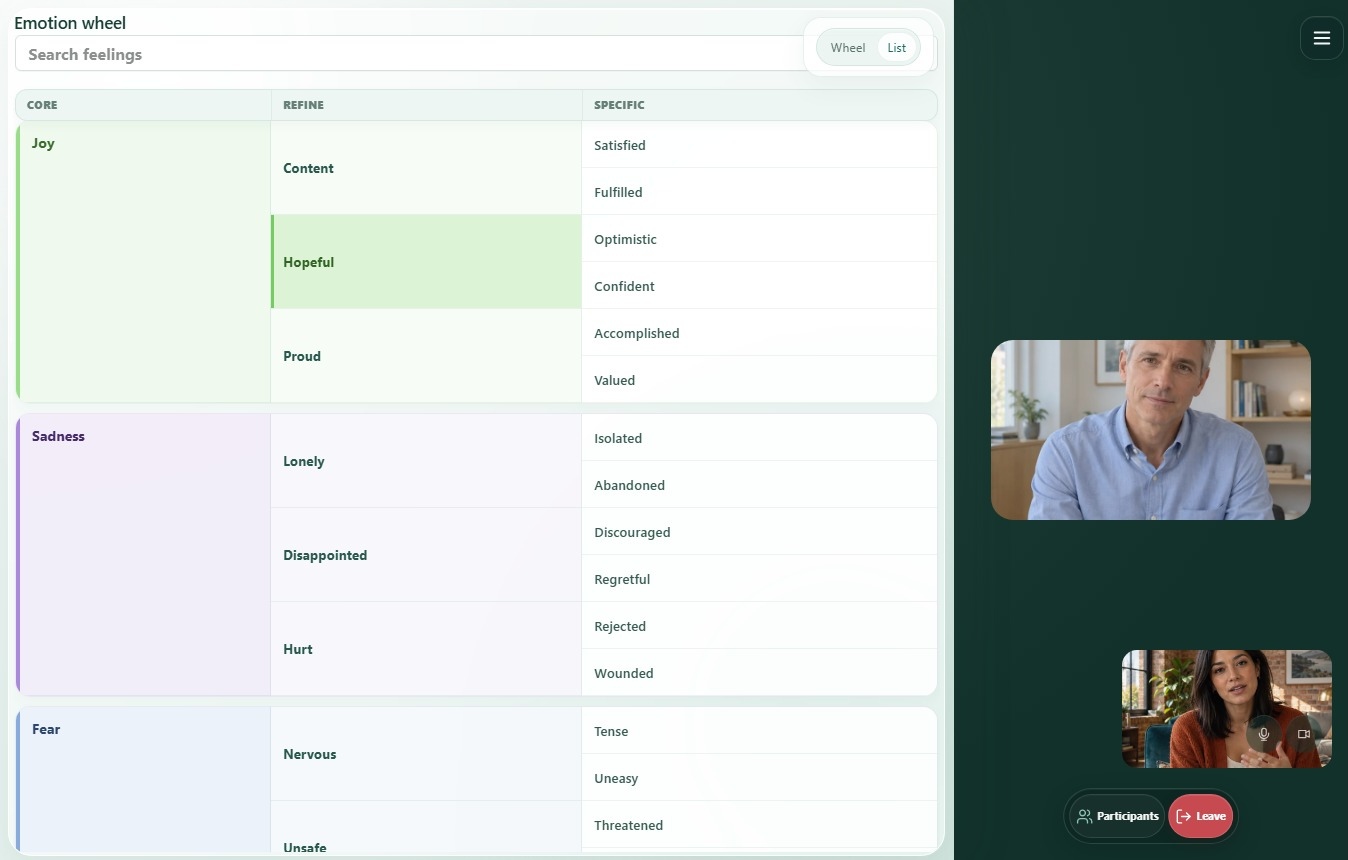
Emotion wheel
Choose the emotion that best matches how you feel and share it.
- Explore from a basic feeling to a more precise emotion
- Choose several feelings at once
- Use a wheel or a searchable list
Put a name to your feelings.
Choose what you feel. Explore the layers, from joy to hopeful, for example.
Good to know
A few practical answers before your first session.
Who opens and controls the tools?
The host opens the tools, controls the left–right cues and chooses when to show an image. Participants can draw when allowed and choose their own feelings in the emotion wheel.
Does my client need to install anything?
No. The tools work in the Canvasara session in your browser.
Is everything saved automatically?
No. Video calls are not recorded. Session tool content stays on the client’s and therapist’s devices. You can explicitly save or share a drawing board; sharing stores the file temporarily on Canvasara.
Can I switch tools during a session?
Yes. Choose another tool from the tool menu. You stay in the same session.
Do the tools work on mobile?
Yes. The tools adapt to your screen. A tablet or computer is more comfortable for drawing or viewing details.